How to Create a Professional CV: A Step-by-Step Guide
Create a professional, ATS-friendly CV with confidence. Follow this step-by-step guide to learn how to add your personal information, write a strong professional summary, highlight your experience and skills, customize your CV and download a polished PDF ready for your next application.
- ATS-friendly templates

- AI writing assistant
- High-resolution PDF export
Create a Professional CV in 9 Simple Steps
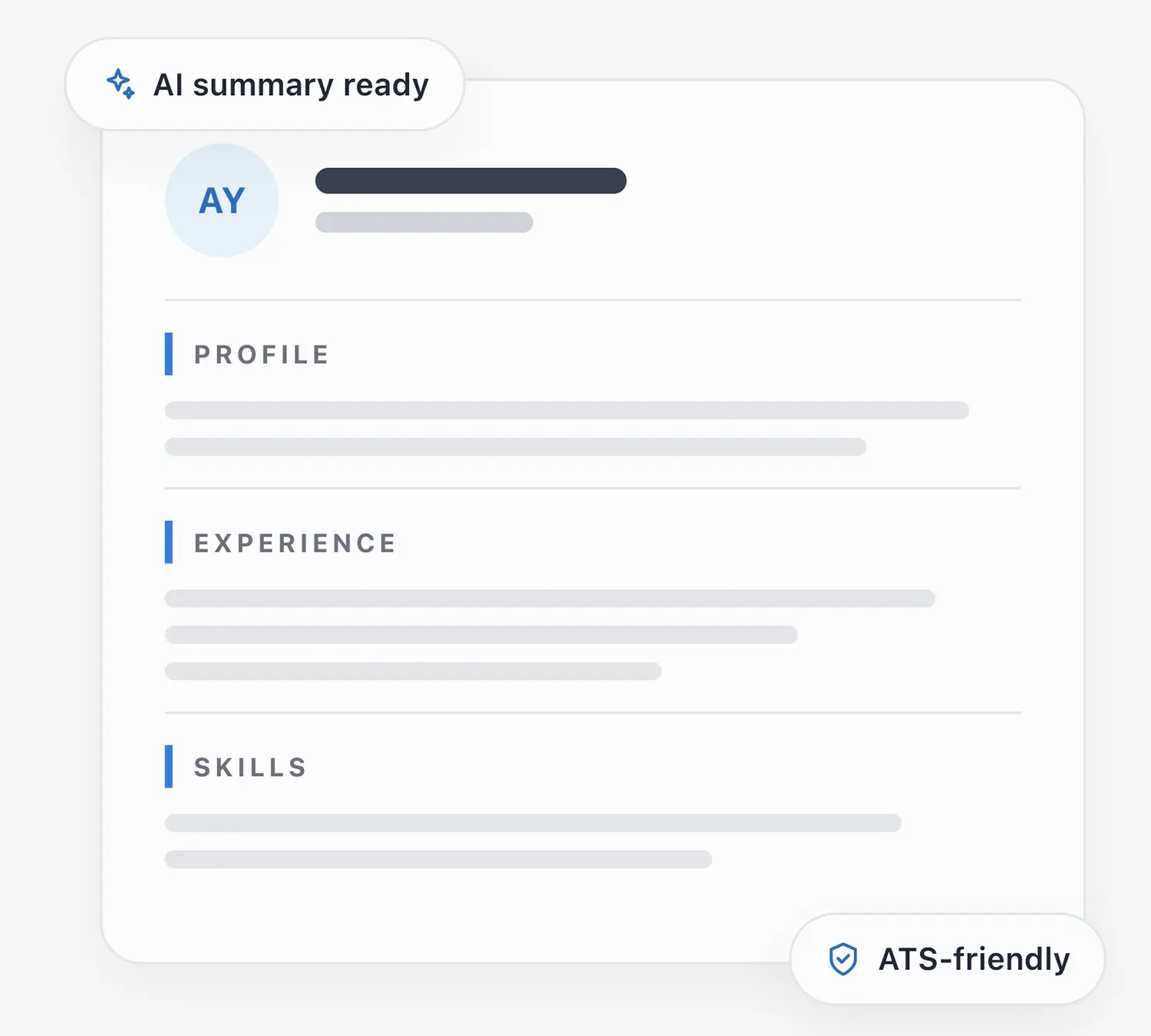
CV Maker You’s guided CV builder takes you from a blank page to a polished, ATS-friendly resume — without complicated formatting. Add your information section by section, watch the live preview update as you type, and download a high-resolution PDF when you are ready to apply.
- Step-by-step CV creation
- Live preview as you type
- Professional CV templates
- ATS-friendly formatting
- AI-powered writing assistance
- Fully editable CVs
- High-resolution PDF export
- CVs saved in your account
Not sure where to start? Browse ready-made CV examples or professional CV templates for inspiration, then follow the steps below.
Step 1. Add Your Personal Information
This is where employers learn who you are and how to reach you. Keep every detail accurate, current and professional — your name and contact details are the first things a recruiter looks for.

Privacy tip: Use your city and country instead of your full residential address — for example, Kadıköy, Istanbul, Türkiye. Recruiters do not need your street address at this stage.

Photo tip: If you include a photo, choose a professional, high-resolution portrait with a clean, neutral background. Whether to add a photo depends on the country and industry you are applying in.

Tip: Keep your contact information accurate, professional and easy to find.
What to add
- Full name
- Professional title
- Email address
- Phone number
- City and country
- LinkedIn URL
- GitHub URL
- Portfolio website
- Professional photo (optional)

Step 2: Write a Strong Professional Summary
The professional summary is a short introduction near the top of your CV. In roughly three to four sentences, it tells recruiters who you are, what you do best and the value you can bring to their team.

AI Assistant
Use the AI Assistant to generate a professional summary based on your experience, skills and career background — then refine the wording so it sounds like you.
Example: “Results-driven digital marketing specialist with 5+ years of experience in SEO and paid campaigns. Grew organic traffic by 60% year over year and managed a monthly ad budget of $25,000. Known for turning data into clear, actionable strategies.”
Tailor the summary to each position: lead with the experience and strengths that matter most for the role you are applying for.
What it should communicate
- Years of experience
- Main areas of expertise
- A key achievement
- Professional strengths
- The value you bring to an employer
Step 3: Add Your Education
List your education in reverse chronological order, starting with your most recent qualification. If you are still studying, mark the programme as Currently Studying so recruiters can see it is ongoing.
Tip: Only include your GPA when it strengthens your application — for example, when you are a recent graduate with a strong academic record.
What to add
- School / University
- Degree
- Field of study
- Start date
- End date
- Current education status
Optional additions
- GPA
- Academic honors
- Awards
- Relevant achievements
Step 4: Highlight Your Work Experience
Your work experience is the heart of your CV. List your roles in reverse chronological order and describe them with achievements — not just duties. Measurable results are generally stronger than generic responsibility statements.
Weak
Managed social media accounts.
Strong
Increased social media engagement by 45% within six months by restructuring the content strategy.
Where you can — and only where it is truthful — include numbers such as percentages, revenue impact, time savings, number of customers, projects completed, team size and performance improvements.
Tip: Start each bullet point with a strong action verb — led, built, improved, launched, reduced.
What to add
- Company name
- Job title
- Location
- Employment dates
- Key responsibilities
- Achievements with measurable results
Step 5: Add Your Skills and Languages
Your work experience is the heart of your CV. List your roles in reverse chronological order and describe them with achievements — not just duties. Measurable results are generally stronger than generic responsibility statements.
Example skills
React.js, JavaScript, SEO, Project Management, WordPress, Adobe Photoshop, Data Analysis
Languages
Use recognized proficiency levels so recruiters can assess your language skills accurately:
Native, C1 — Advanced, B2 — Upper Intermediate, B1 — Intermediate, A2 — Elementary
What to add
- Technical skills relevant to the role
- Soft skills where appropriate
- Languages with proficiency levels
Tip: List languages honestly — interviews tend to reveal your real level quickly.
Step 6: Relevant Extra Sections
Extra sections are optional. Add them when they provide relevant context or demonstrate expertise — not just to make your CV longer. Relevance always beats length.
Tip: List languages honestly — interviews tend to reveal your real level quickly.
Step 7: Reorder Your CV Sections
There is no single correct CV structure — the ideal order depends on your experience and career stage. In the CV builder you can drag and drop sections to find the order that tells your story best.
Note: These are recommendations, not rules — choose the structure that best highlights your strengths for each application.
Step 8: Choose Your CV Template and Style
Pick a template that fits your industry and experience level, then adjust the styling until the design feels right — while keeping the text easy to read.
Modern
Contemporary layouts for most roles.
Executive
Formal layouts for senior positions.
Minimal
Clean and content-focused.
ATS-Friendly
Simple, parser-friendly structure.
Font tip: Readable fonts such as Arial, Helvetica and Inter keep your CV easy to scan on screen and in print.

ATS guidance: ATS-friendly CVs prioritize clear headings, standard section names, readable text, simple layouts and consistent formatting. No template can guarantee ATS compatibility — but a clean, simple structure always helps.
What you can customize
- Colors
- Typography
- Font size
- Section spacing
- Layout
Step 9: Preview and Download Your CV
Before you download, review your CV carefully. The live A4 preview shows exactly how the final PDF will look, so check it page by page before submitting your application.
Save, purchase and download
Edit and download options depend on the product option you select at checkout — the exact details are always shown before payment.
Final checks before downloading
- Check spelling and grammar
- Verify contact information
- Check employment dates
- Confirm education dates
- Review formatting
- Check section order
- Confirm skills are relevant
- Remove unnecessary information
- Review the CV for ATS readability
Frequently Asked Questions About Creating a CV
A clear, reverse-chronological format works well for most job applications: it presents your most recent experience first and is easy for both recruiters and applicant tracking systems to scan. The best choice ultimately depends on your experience, industry and the requirements of the position you are applying for.
Choose a professional template, add your personal information, education, experience, and skills, then use AI to improve your CV content and create a polished resume.
An ATS-friendly CV is structured and formatted so Applicant Tracking Systems can more easily read and organize your information. Clear headings, readable text, relevant keywords, and a simple structure are important.
Yes. AI can help you improve your professional summary, work experience, skills, and other sections while you remain in control of the information included in your CV.
CV Maker You provides professional, readable templates designed to support ATS-friendly CV creation while maintaining a modern and professional appearance.
Yes. Choose a template, enter your information, customize your content, and use AI-assisted tools to create a professional CV without design experience.
Ready to create the CV that gets you hired?
Start free, build your first professionalCVin minutes, and download a polished PDF. No credit card required.